













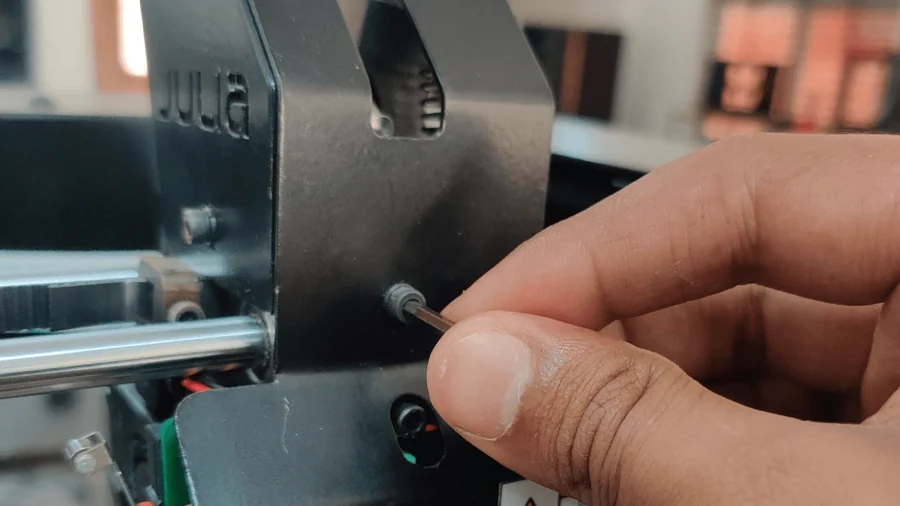







How to load code to Seeeduino Xiao (Snowflake bed levelling code loading)
Knowing how to upload code on Seeduino Xiao is necessary as it is used to upload Bed levelling code to the Snowflake board.
Hardware
Materials required
- Seeeduino XIAO x1
- Computer x1
- USB Type-C cable x1
Tip
Some USB cables can only supply power and cannot transfer data. If you don’t have a USB-C cable or don’t know if your USB cable can transmit data, you can check seeed USB type C support USB 3.1 .
- Step 1. Prepare a Seeeduino XIAO and a Type-C cable.
- Step 2. Connect the Seeeduino XIAO to your computer. Then the yellow power LED should go on.
Software
Note
If this is your first time using Arduino, we highly recommend that you refer to Getting Started with Arduino
- Step 1. You need to install the Arduino Software.

Launch the Arduino application
Double-click the Arduino application (arduino.exe) you have previously downloaded.
Note
If the Arduino Software loads in a different language, you can change it in the preferences dialog. See the Arduino Software (IDE) page for details.
- Step 2. Download and open the Bed levelling code
Download the bed levelling code from:
Open the Bed Levelling code: File > Open> Select the file.
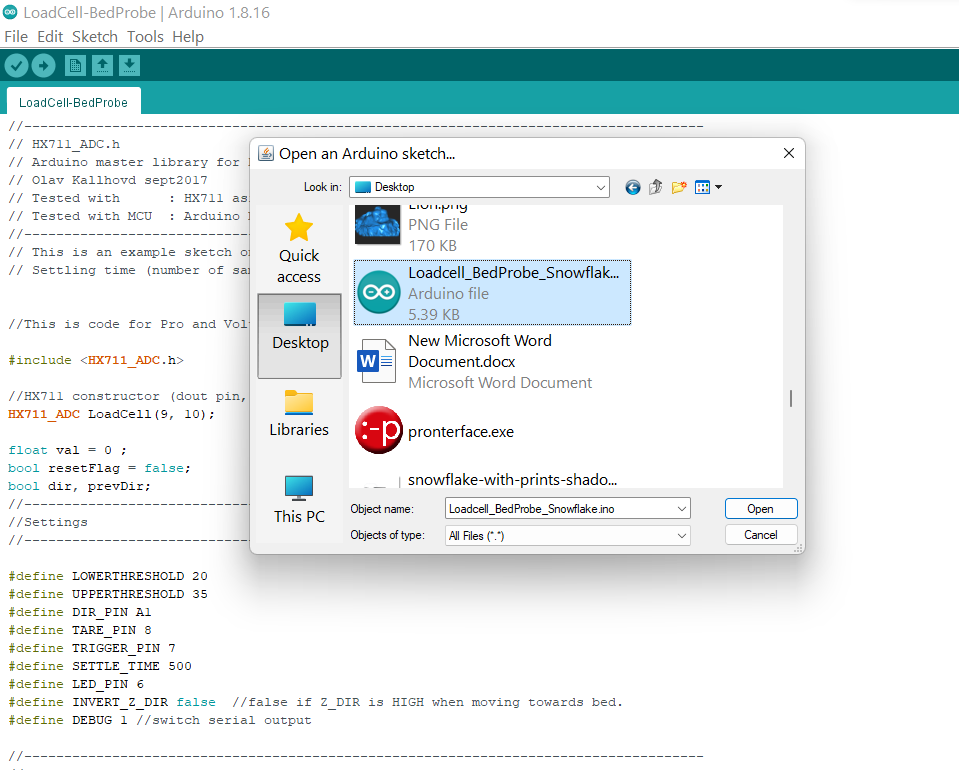
- Step 3. Add Seeeduino to your Arduino IDE
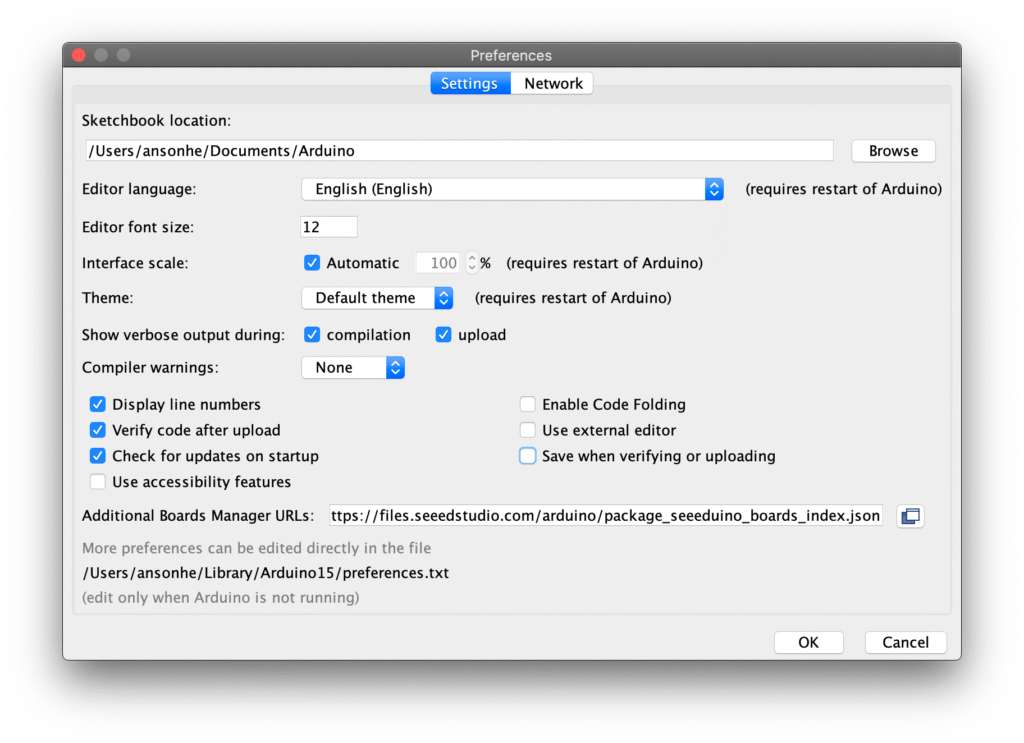
Click on File > Preferences, and fill in Additional Boards Manager URLs with the URL below: https://files.seeedstudio.com/arduino/package_seeeduino_boards_index.json
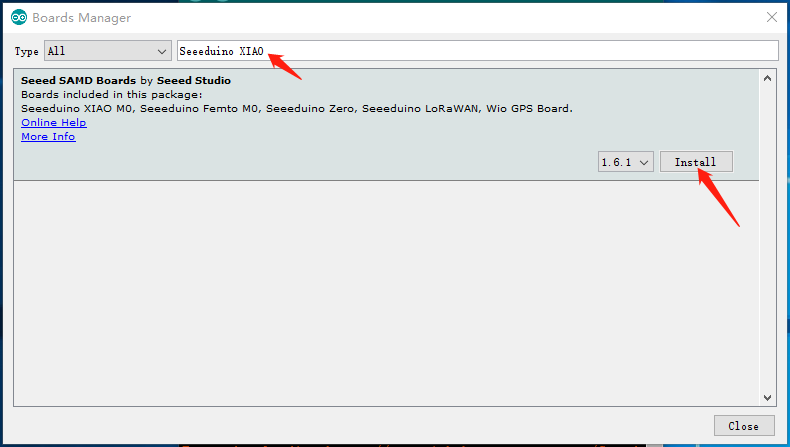
Click Tools-> Board-> Boards Manager…, print keyword “Seeeduino XIAO” in the search blank. Here comes the “Seeed SAMD Boards”. Install it.
Also
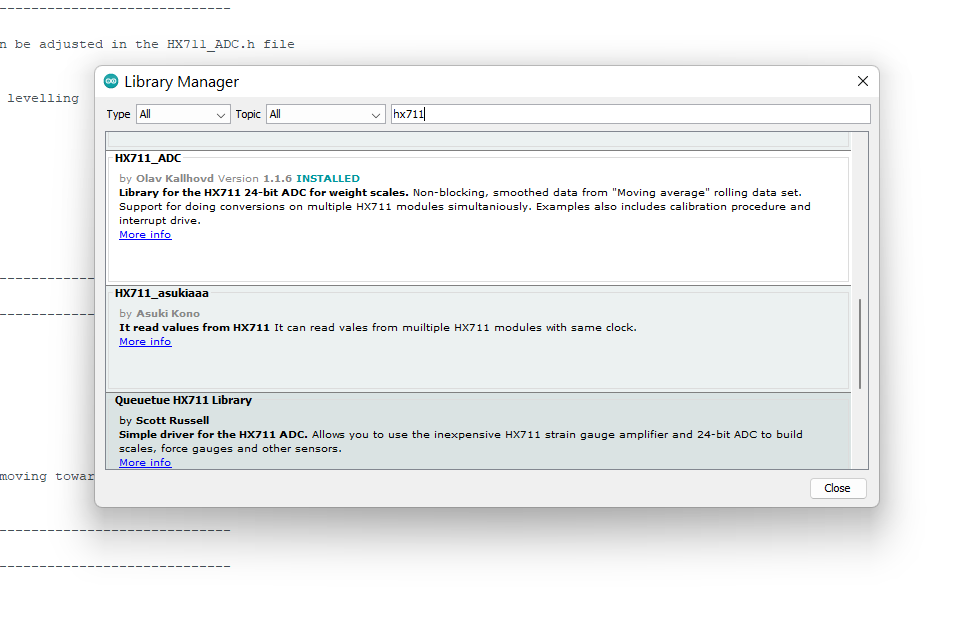
Install the HX711_ADC.h library by Olav Kallhovd in the Arduino IDE
Tools> Manage Libraries> (Search) HX711_ADC.h> Click Install
Step 4. Select your board and port
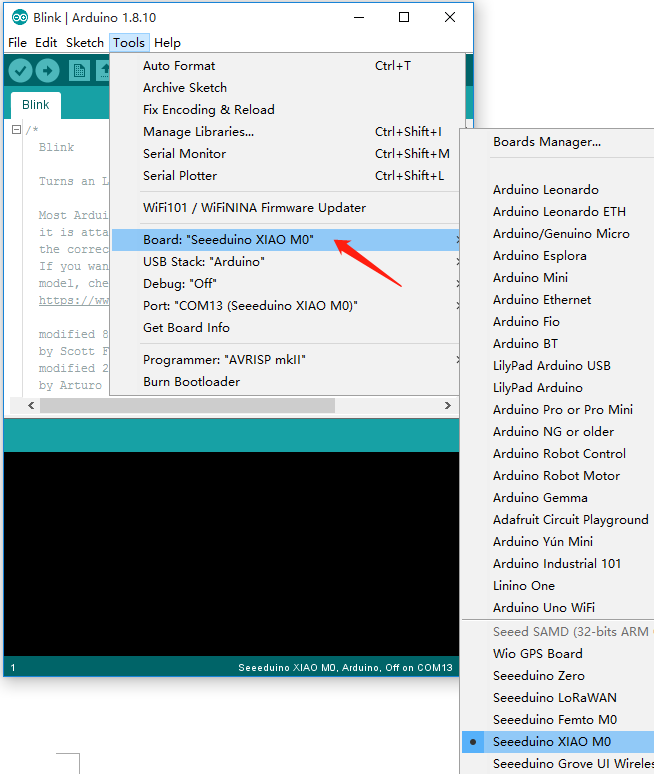
After installing the board, click Tools-> Board, find “Seeeduino XIAO M0” and select it. Now you have already set up the board of Seeeduino XIAO for Arduino IDE.
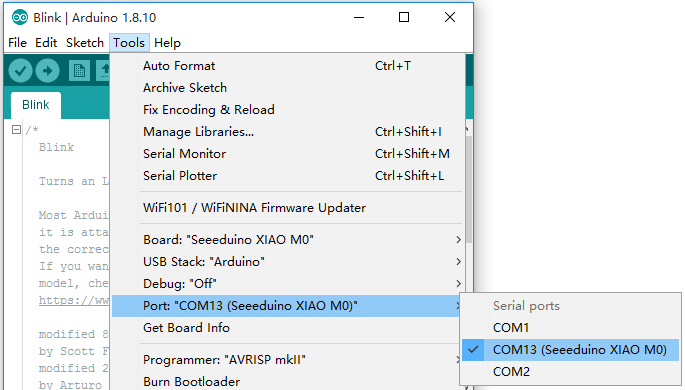
Select the serial device of the Arduino board from the Tools | Serial Port menu. This is likely to be COM3 or higher (COM1 and COM2 are usually reserved for hardware serial ports). To find out, you can disconnect your Arduino board and reopen the menu; the entry that disappears should be the Arduino board. Reconnect the board and select that serial port.
- Step 5. Upload the program
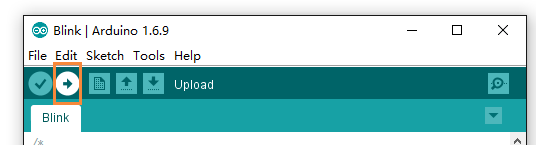
Now, simply click the “Upload” button in the environment. Wait a few seconds, and if the upload is successful, the message “Done uploading” will appear in the status bar.
A few seconds after the upload finishes,
Troubleshooting:
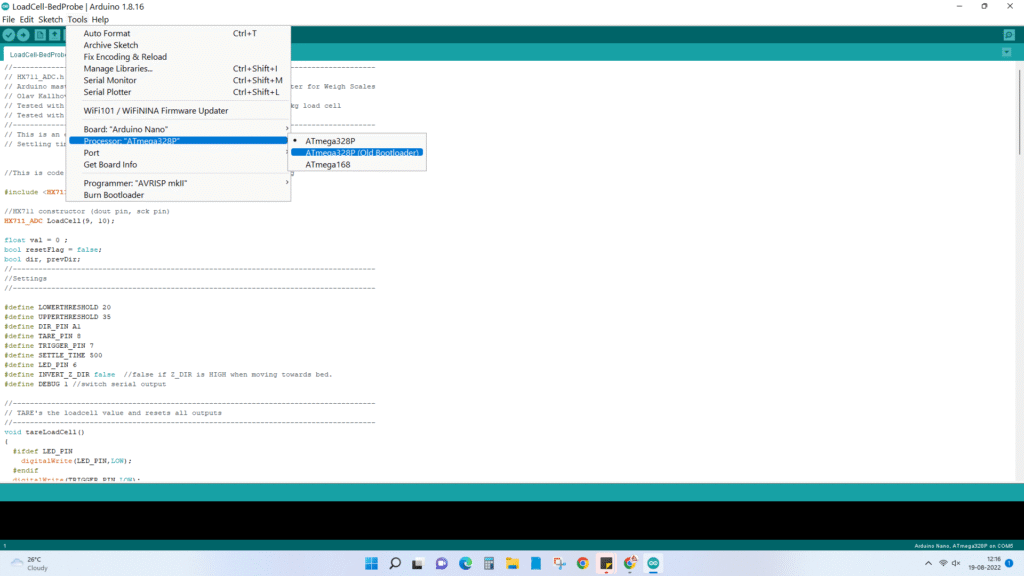
1. If the code loading fails, then change the bootloader to Old Bootloader.