













Writing a Knowledge Base Article (Team Guide)
This is the team’s guide to adding an article to the knowledge base. Everything happens in the normal WordPress editor; nothing needs a developer. An article published here appears automatically on the KB front page, its category page, the site search and the sitemap.
Where articles live
In wp-admin, open Knowledge Base → Add New Doc. Every article needs exactly two things besides its content:
- One category, ticked in the Doc Categories box. Use the nine public sections (Getting Started, Julia, Snowflake, Volterra, Fracktory, Materials, Print Quality, Manuals, Buying). Anything for the care team only goes in kb-internal — those articles are hidden from the public pages and from Google.
- A meta description, in the Yoast box below the editor: one sentence, roughly 70–160 characters, saying what the article covers. It shows under the title on the KB pages and in Google results.
Writing a standard article
- Open with one or two sentences saying what the article covers and who it is for — not a welcome, not history.
- Use Heading 2 for sections. The page’s sidebar builds its “On this page” outline from them automatically.
- For a warning or an aside, write a paragraph and pick the KB caution or KB note style from the block’s Styles panel.
- Link to related KB articles and to the relevant machine or material page. An article nothing links to is an article nobody finds.
Writing a step-by-step guide
For procedures — assembly, repairs, filament changes — use the step-guide format. See Changing Filament (Julia 2018 Series) for the finished look.
- In the editor, open the block inserter, switch to Patterns, and find the Knowledge Base category.
- Insert KB guide: facts strip once, at the top, and fill in difficulty, time and what the reader needs.
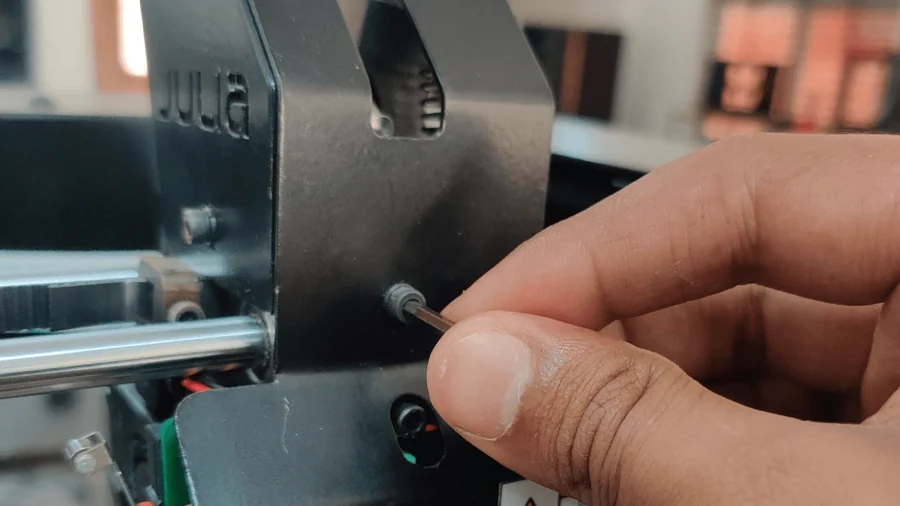
- Insert KB guide: step once per step. Replace the placeholder image with a photo of the step, give the step a short verb-first title, and write the instructions as bullets.
- Steps number themselves. Add, delete or reorder them freely — the numbers stay right. A step can carry two photos (add a second Image block in the left column) or none (delete the Image block).
Images
- Upload through the editor as usual. Photograph the actual step on the actual machine; crop to the action.
- Give every image an alt text describing what it shows.
- Never hot-link an image from another site — those links rot and leave broken boxes.
If an upload fails with a folder or permission error at the start of a month, the new month’s upload folder needs unlocking — a security measure, not a fault. Ask Vijay or the agent to open it; it takes one command.
The rules that keep the KB good
- Never paste another manufacturer’s text. Copied Dobot and Simplify3D content has been rooted out of this KB once already; write from what we know about our machines.
- State facts you can stand behind — temperatures, part names, procedures. If unsure, check with the care team before publishing.
- British spelling; plain sentences; no exclamation marks doing the work of information.
- End troubleshooting articles with the escalation path: send us the G-code.