











Unboxing & Inventory Guide (Snowflake)
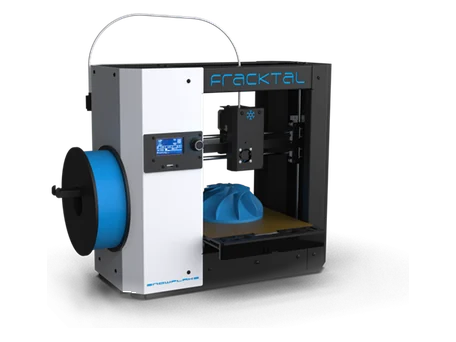
This guide outlines the steps to safely unbox your Snowflake 3D Printer and verify all included components before installation.
Step 1: Inspect the Packaging
1. Place the delivery box on a clean, flat, and stable surface.
2. Examine the outer carton for visible damage or tampering during transit.
3. If damage is found, photograph and report it to your supplier before proceeding with unboxing.
Step 2: Open the Box Safely
1. Use a safety cutter or scissors to remove the sealing tape.
2. Carefully lift and remove the top protective foam layer.
3. Keep all packaging materials for potential reuse (such as transportation or warranty claims).
Step 3: Remove the Printer Unit
1. With both hands, gently lift the printer from the base and place it on a flat, sturdy surface.
2. Ensure the printer rests securely, avoiding uneven or unstable surfaces.
Step 4: Remove Accessories and Tools
Take out all the included accessories from the box. These may be located in side compartments or foam inserts.
| No. | Item | Description |
| 1 | Power Cord | For connecting the printer to the power supply |
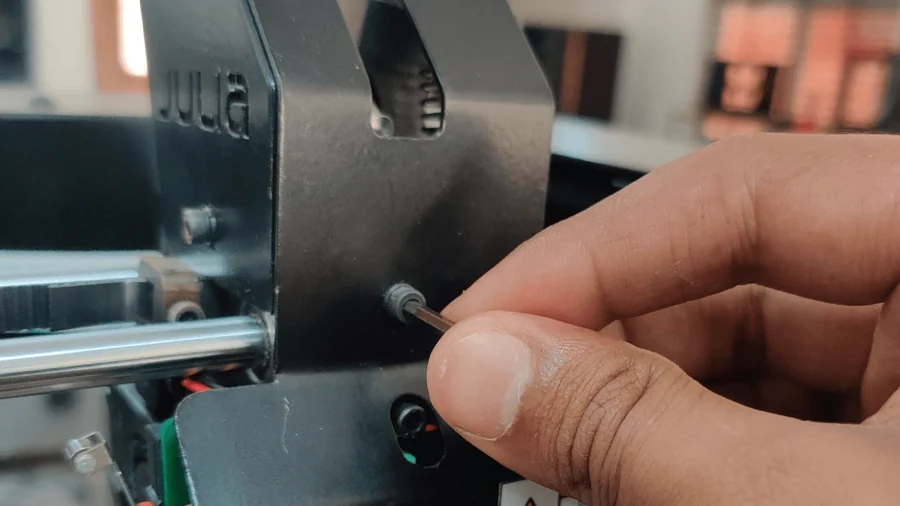
| 2 | PTFE Tube | Guides filament from the sensor to the nozzle |
| 3 | Spool Holder | Mount for filament spool |
| 4 | Build Plate | Magnetic base for printing |
| 5 | Allen Keys (2mm, 2.5mm, 3mm) | For mechanical adjustments |
| 6 | Tweezers | For print removal and nozzle cleaning |
| 7 | Nipper | For cutting filament cleanly |
| 8 | Unclogging Pin | For nozzle maintenance |
| 9 | Pendrive | Contains user manuals, slicer software, and profiles |
| 10 | WD-40 | For lubrication and rod cleaning |
Step 5: Verify the Inventory
1. Cross-check all items against the packing list above.
2. Report any missing or damaged items immediately to Fracktal Works Support.
3. Keep all accessories together for use during the setup and maintenance process.
Step 6: Remove Protective Materials
1. Remove all protective tapes, foam inserts, and plastic covers from the printer body.
2. Inspect the print head and build plate area to ensure they are free from debris.
3. Confirm that the motion components (belts, rods, and extruder) move freely without obstruction.
Step 7: Final Placement
1. Place the printer on a stable, vibration-free surface with adequate space around it for ventilation.
2. Avoid placing the printer near heat sources, moisture, or direct sunlight.
3. Ensure power access and USB connectivity are convenient for future use.
Important Notes
• Handle the printer and components carefully; avoid impact or bending of rods and cables.
• Keep small accessories away from children and untrained users.
• Retain the packaging in case of future relocation or servicing needs.