














Firmware & Display Setup (Snowflake)
This section provides instructions for setting up, updating, and verifying the firmware and display configuration of the Snowflake 3D Printer. Proper setup ensures stable operation, accurate controls, and compatibility with the latest software features.
Step 1: Understanding Firmware and Display Components
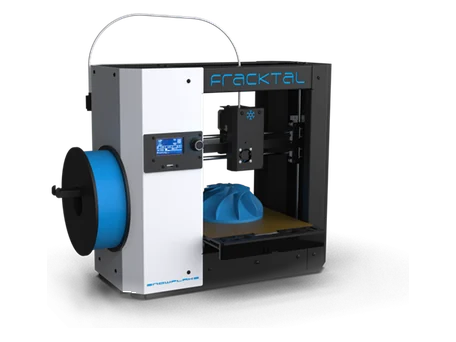
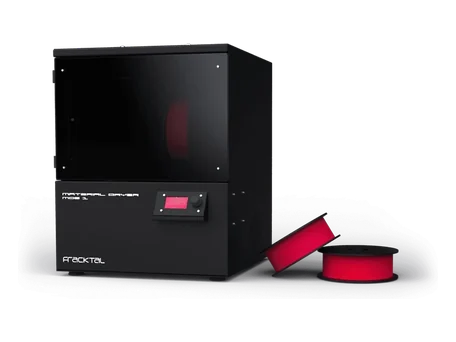
The Snowflake 3D Printer includes a 2.8-inch LCD dial display and an embedded control board with pre-installed firmware.
Key components include:
- ✔ LCD Display (2.8-inch interactive screen)
- ✔ Rotary Dial Knob (for navigation and selection)
- ✔ Mainboard Firmware (controls motion and system logic)
- ✔ USB Interface (for firmware update or file transfer)
Step 2: Initial Display Setup
1. Power on the printer by flipping the main switch to ON.
2. Verify that the LCD display lights up and shows the startup logo (Fracktal Works).
3. Wait for the system to complete its boot sequence (approx. 10–15 seconds).
4. Rotate the dial to navigate through menus and press to select options.
5. If the screen remains blank, check power connections and ensure the display cable is securely connected to the mainboard.
Step 3: Accessing Firmware Information
1. From the home menu, rotate the dial to select ‘Settings’.
2. Navigate to ‘About Printer’ or ‘System Info’.
3. The display will show the firmware version, build date, and hardware ID.
4. Record this information before performing any firmware updates.
Step 4: Firmware Update via USB
To ensure optimal performance, always install the latest firmware available from Fracktal Works.
Follow these steps:
1. Download the latest firmware package from the official Fracktal Works website (www.fracktal.in).
2. Extract the downloaded ZIP file and copy the firmware file (e.g., ‘snowflake_firmware.bin’) to a USB drive.
3. Insert the USB drive into the printer’s USB port.
4. Power on the printer and wait for the system to detect the firmware file automatically.
5. Follow the on-screen prompts to begin the update process.
6. Do not power off or remove the USB drive during the update.
7. Once completed, the printer will reboot automatically and confirm the update.
Step 5: Restoring Factory Settings
If unexpected errors or performance issues occur, restoring factory settings may resolve them:
1. Navigate to the ‘Settings’ menu using the dial.
2. Select ‘Restore Defaults’ or ‘Factory Reset’.
3. Confirm your choice when prompted.
4. Wait for the printer to reset and restart. All custom settings will be erased.
Step 6: Display Calibration and Brightness
1. Navigate to ‘Display Settings’ in the printer menu.
2. Adjust the screen brightness to a comfortable level for your environment.
3. If the dial rotation feels inverted, check the display orientation settings.
4. To recalibrate touch input (if applicable), follow the on-screen guide in the calibration menu.
5. Save changes before exiting the settings menu.
Step 7: Firmware Update Verification
After completing the firmware update:
- ✔ Verify that the startup logo and main menu appear correctly.
- ✔ Check the firmware version in the ‘About Printer’ section.
- ✔ Confirm motion system and fan control functionality.
- ✔ Perform a short test print to ensure stable performance.
Step 8: Troubleshooting Common Issues
Common display and firmware issues include:
• Display does not turn on → Check power and data cable connections.
• Frozen or unresponsive screen → Restart the printer or perform a factory reset.
• Firmware update fails → Reformat USB drive (FAT32) and retry with a fresh file.
• Incorrect display language → Adjust language settings in the system menu.
• No boot after update → Contact Fracktal Works support with firmware version details.
Step 9: Final Checklist
- ✔ Display and dial knob functioning correctly.
- ✔ Firmware version verified as the latest release.
- ✔ All settings saved and applied after reboot.
- ✔ No visible errors or alerts on startup.
- ✔ Printer ready for calibration and printing.
Important Notes
• Use only official firmware files from Fracktal Works to avoid compatibility issues.
• Do not interrupt power or remove the USB drive during the firmware update.
• Always record the current firmware version before upgrading.
• Contact Fracktal Works Support for guidance if firmware recovery is required.